
How I Debug Production Incidents
There is a specific kind of silence that happens when something breaks in production. Not the peaceful kind. The kind where your phone buzzes at 2:17am and you know, before you even look, that the next few hours of your life belong to whatever just caught fire.
I have been running a homelab for years now — a Dell PowerEdge R720, three Dell OptiPlex 7050s in a Proxmox cluster, a ZFS NAS, and a bare metal Arch Linux workstation that I use for development. On top of that, I build and operate Kumari.ai, an AI agent platform with a FastAPI backend, Next.js frontend, Redis, PostgreSQL, and a bunch of moving pieces. Things break. They break in ways I never anticipated, at times I never wanted, and the only thing that separates a 20-minute fix from a 6-hour nightmare is having a process.
This post is that process. My runbook. Three real war stories. And the monitoring setup that means I rarely get surprised anymore.
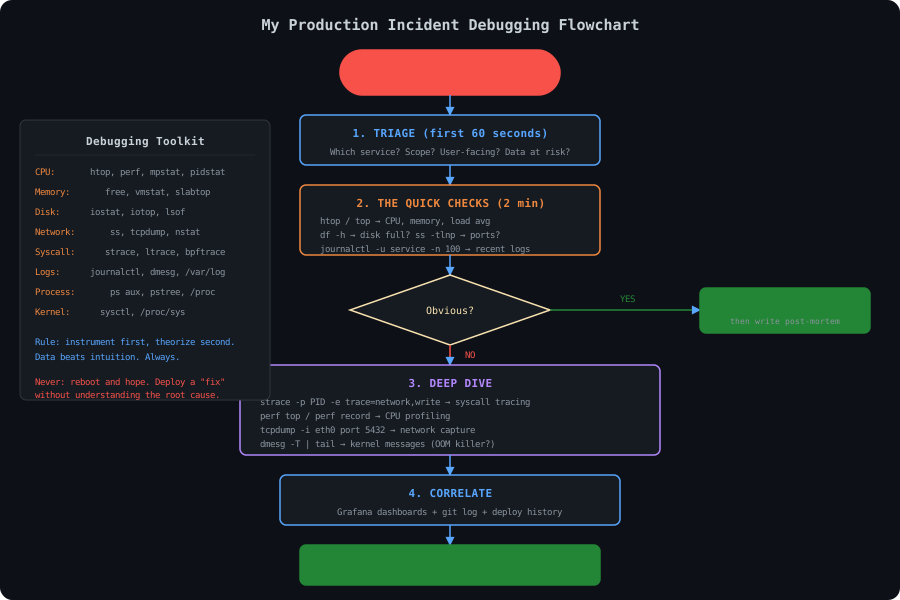
The Methodology
Before I get into the stories, here is the framework I follow every single time. I have it burned into muscle memory at this point.
1. Triage (First 2 minutes)
The goal is not to fix anything. The goal is to understand what is on fire and how badly.
- What is the user-facing impact? Is the site down? Is it slow? Is data being corrupted?
- When did it start? Check your monitoring dashboards. Correlate with recent deploys or changes.
- What changed recently? , check deployment history, look at recent cron jobs.CODE1 line
git log --oneline -10
2. Quick Checks (Next 5 minutes)
I run the same set of commands every time. They cover 80% of incidents:
Bash17 lines1# System resources 2htop # CPU, memory, load at a glance 3free -h # Memory specifically 4df -h # Disk space 5iostat -x 1 3 # Disk I/O saturation 6 7# Processes 8ps aux --sort=-%mem | head 20 # Top memory consumers 9ps aux --sort=-%cpu | head 20 # Top CPU consumers 10 11# Networking 12ss -tlnp # What is listening where 13ss -s # Connection state summary 14 15# Logs 16journalctl -p err --since "1 hour ago" --no-pager | tail -50 17dmesg -T | tail -30
3. Deep Dive
Once I have a hypothesis, I pick the right tool:
| Symptom | Tool | Command |
|---|---|---|
| High CPU, unknown cause | CODE 1 line perf | CODE 1 line perf top -p <pid> |
| Process hanging | CODE 1 line strace | CODE 1 line strace -fp <pid> -e trace=network |
| Disk I/O issues | CODE 1 line iostatCODE 1 line iotop | CODE 1 line iotop -aoP |
| Network weirdness | CODE 1 line tcpdump | CODE 1 line tcpdump -i eth0 -nn port 5432 |
| File descriptor leaks | CODE 1 line lsof | CODE 1 line lsof -p <pid> | wc -l |
| Memory leaks | CODE 1 line /proc/<pid>/smaps | CODE 1 line cat /proc/<pid>/smaps_rollup |
4. Correlate
The root cause is almost never the first thing you find. You find symptoms. The real cause usually lives one or two layers deeper. Correlate timestamps across
journalctldmesg5. Fix and Verify
Apply the minimal fix. Verify it works. Do not get clever at 3am.
6. Postmortem
Every incident gets a postmortem. Even if I am the only person reading it. I will share my template later in this post.
War Story #1: The OOM Killer Mystery
The Alert
It was a Saturday morning. I was making tea when my Grafana alert fired: pve2 node unreachable. My phone lit up with three alerts in rapid succession — the node itself, then two VMs that were running on it.
I SSH'd into pve2 from my workstation. The connection was slow but it worked. That told me the node was alive but struggling.
The Investigation
First thing, always check
dmesgBash6 lines1resham@pve2:~$ dmesg -T | grep -i oom 2[Sat Apr 12 02:41:17 2025] node2 invoked oom-killer: gfp_mask=0x100cca(GFP_HIGHUSER_MOVABLE), order=0, oom_score_adj=0 3[Sat Apr 12 02:41:17 2025] oom-killer: constraint=CONSTRAINT_NONE 4[Sat Apr 12 02:41:17 2025] Out of memory: Killed process 28413 (kvm) total-vm:8421504kB, anon-rss:4182272kB, file-rss:0kB, shmem-rss:0kB, UID=0 pgtables:16832kB oom_score_adj=0 5[Sat Apr 12 02:41:19 2025] Out of memory: Killed process 31087 (kvm) total-vm:4210688kB, anon-rss:2091136kB, file-rss:0kB, shmem-rss:0kB, UID=0 pgtables:8416kB oom_score_adj=0 6[Sat Apr 12 02:41:22 2025] oom_reaper: reaped process 28413 (kvm), now anon-rss:0kB, file-rss:0kB, shmem-rss:0kB
The OOM killer had taken out two KVM processes. Those were my VMs. But KVM processes do not just suddenly eat all memory on a host unless something else pushed the system to the edge first. The KVM processes were just the victims — they had the highest
oom_scoreSo who was the actual offender?
Bash10 lines1resham@pve2:~$ journalctl --since "2025-04-12 02:00" --until "2025-04-12 02:45" -p warning --no-pager | head -40 2Apr 12 02:14:33 pve2 kernel: java[19842]: segfault at 0000000000000000 ip 00007f3a1c2e4a10 sp 00007f39e4bfe920 error 4 3Apr 12 02:27:11 pve2 systemd[1]: jenkins.service: memory usage 14.2G, limit set to infinity 4Apr 12 02:33:45 pve2 kernel: kswapd0: page allocation failure: order:0, mode:0x100cca(GFP_HIGHUSER_MOVABLE) 5Apr 12 02:38:02 pve2 kernel: Mem-Info: 6Apr 12 02:38:02 pve2 kernel: active_anon:3921847 inactive_anon:189432 isolated_anon:0 7Apr 12 02:38:02 pve2 kernel: active_file:1204 inactive_file:892 isolated_file:0 8Apr 12 02:38:02 pve2 kernel: unevictable:0 dirty:0 writeback:0 unstable:0 9Apr 12 02:38:02 pve2 kernel: slab_reclaimable:12841 slab_unreclaimable:48923 10Apr 12 02:41:17 pve2 kernel: node2 invoked oom-killer: gfp_mask=0x100cca(GFP_HIGHUSER_MOVABLE)
There it was. Jenkins.
memory usage 14.2G, limit set to infinityLet me confirm:
Bash6 lines1resham@pve2:~$ ps aux --sort=-%mem | head 10 2USER PID %CPU %MEM VSZ RSS TTY STAT START TIME COMMAND 3root 19842 84.3 44.7 16843776 14612480 ? Sl 01:58 32:14 /usr/bin/java -Djenkins.install.runSetup... -jar /usr/share/java/jenkins.war 4root 28413 2.1 12.8 8421504 4182272 ? Sl Apr11 8:42 /usr/bin/kvm -id 104 -name gitea-server... 5root 31087 1.4 6.4 4210688 2091136 ? Sl Apr11 5:11 /usr/bin/kvm -id 107 -name monitoring... 6root 1842 0.3 1.2 2341888 401408 ? Sl Apr09 4:22 /usr/bin/kvm -id 101 -name reverse-proxy...
44.7% of 32GB. Jenkins was eating 14.6GB and climbing. No
-XmxThe Fix
Immediate fix — kill the runaway build and restart Jenkins with memory limits:
Bash9 lines1# Kill the runaway process 2resham@pve2:~$ kill -9 19842 3 4# Set JVM heap limits in Jenkins defaults 5resham@pve2:~$ cat /etc/default/jenkins 6JAVA_ARGS="-Xms512m -Xmx4g -XX:+UseG1GC -XX:MaxMetaspaceSize=512m" 7 8# Restart Jenkins 9resham@pve2:~$ systemctl restart jenkins
But that only fixes the application layer. What I really needed was a hard ceiling at the OS level so that no single container or service could ever OOM the entire host again:
Bash9 lines1# Set memory limits in the systemd service override 2resham@pve2:~$ systemctl edit jenkins 3# Added: 4# [Service] 5# MemoryMax=6G 6# MemoryHigh=5G 7 8resham@pve2:~$ systemctl daemon-reload 9resham@pve2:~$ systemctl restart jenkins
I also went through every LXC container on the cluster and made sure Proxmox memory limits were properly set. Some of them had been created with "unlimited" memory because I was lazy when I first set them up.
Bash2 lines1# In Proxmox, for the Jenkins CT (ID 112): 2resham@pve2:~$ pct set 112 -memory 8192 -swap 2048
The Lesson
The root cause was not Jenkins. It was me, three months earlier, when I created that container without memory limits because "I'll set them later." I never did. The build that triggered the OOM was just the straw.
War Story #2: The Disk Full Silent Failure
The Alert
This one was subtle. I noticed that Kumari.ai's chat responses were working fine for existing conversations, but creating new conversations would hang and eventually time out. No errors in the FastAPI logs. No CPU or memory issues. The application just... stopped being able to write.
The Investigation
I SSH'd into the database server and started with the basics:
Bash5 lines1resham@db-server:~$ df -h 2Filesystem Size Used Avail Use% Mounted on 3/dev/sda1 50G 50G 0 100% / 4tmpfs 7.8G 1.2M 7.8G 1% /dev/shm 5/dev/sdb1 200G 43G 148G 23% /mnt/data
100% on the root filesystem. There it is. But what was eating it?
Bash8 lines1resham@db-server:~$ du -sh /var/lib/postgresql/ 247G /var/lib/postgresql/ 3 4resham@db-server:~$ du -sh /var/lib/postgresql/16/main/* 51.2G /var/lib/postgresql/16/main/base 638G /var/lib/postgresql/16/main/pg_wal 74.8G /var/lib/postgresql/16/main/pg_xlog_archive 81.1G /var/lib/postgresql/16/main/pg_stat_tmp
38GB of WAL (Write-Ahead Log) files. On a 50GB root partition. That is a problem.
Let me look at what was happening:
Bash13 lines1resham@db-server:~$ ls -la /var/lib/postgresql/16/main/pg_wal/ | head -20 2total 39321600 3drwx------ 3 postgres postgres 4096 Apr 15 02:41 . 4drwx------ 19 postgres postgres 4096 Apr 10 14:22 .. 5-rw------- 1 postgres postgres 16777216 Apr 10 18:33 000000010000002A00000001 6-rw------- 1 postgres postgres 16777216 Apr 10 18:34 000000010000002A00000002 7-rw------- 1 postgres postgres 16777216 Apr 10 18:35 000000010000002A00000003 8... (2300+ files) 9-rw------- 1 postgres postgres 16777216 Apr 15 02:41 000000010000002A000008FF 10drwx------ 2 postgres postgres 4096 Apr 15 02:41 archive_status 11 12resham@db-server:~$ ls /var/lib/postgresql/16/main/pg_wal/ | wc -l 132347
Over 2300 WAL segment files, each 16MB. The reason they were accumulating was a replication slot that was no longer being consumed:
Bash5 lines1resham@db-server:~$ sudo -u postgres psql -c "SELECT slot_name, active, restart_lsn, confirmed_flush_lsn FROM pg_replication_slots;" 2 slot_name | active | restart_lsn | confirmed_flush_lsn 3------------------+--------+--------------+--------------------- 4 backup_replica | f | 2A/00000001 | 2A/00000001 5(1 row)
There it was.
backup_replicarestart_lsnThe slot was inactive (
active: fThe Fix
Bash14 lines1# Drop the orphaned replication slot 2resham@db-server:~$ sudo -u postgres psql -c "SELECT pg_drop_replication_slot('backup_replica');" 3 pg_drop_replication_slot 4-------------------------- 5 6(1 row) 7 8# PostgreSQL immediately starts cleaning up old WAL segments 9resham@db-server:~$ sleep 5 && du -sh /var/lib/postgresql/16/main/pg_wal/ 101.1G /var/lib/postgresql/16/main/pg_wal/ 11 12resham@db-server:~$ df -h / 13Filesystem Size Used Avail Use% Mounted on 14/dev/sda1 50G 13G 35G 27% /
37GB freed instantly. PostgreSQL went right back to normal. But I needed to make sure this could never happen again.
Bash3 lines1resham@db-server:~$ sudo -u postgres psql -c "ALTER SYSTEM SET max_wal_size = '4GB';" 2resham@db-server:~$ sudo -u postgres psql -c "ALTER SYSTEM SET wal_keep_size = '2GB';" 3resham@db-server:~$ sudo -u postgres psql -c "SELECT pg_reload_conf();"
Then I added a Prometheus alert so I would know before disk fills up:
YAML20 lines1# /etc/prometheus/rules/postgres_alerts.yml 2groups: 3 - name: postgresql 4 rules: 5 - alert: PostgresWALAccumulation 6 expr: pg_wal_segments_count > 200 7 for: 10m 8 labels: 9 severity: warning 10 annotations: 11 summary: "PostgreSQL WAL segment count is high on {{ $labels.instance }}" 12 description: "{{ $value }} WAL segments accumulated. Check for orphaned replication slots." 13 14 - alert: DiskSpaceCritical 15 expr: (node_filesystem_avail_bytes{mountpoint="/"} / node_filesystem_size_bytes{mountpoint="/"}) * 100 < 10 16 for: 5m 17 labels: 18 severity: critical 19 annotations: 20 summary: "Root filesystem below 10% on {{ $labels.instance }}"
The Lesson
PostgreSQL does not log a warning when a replication slot is causing WAL accumulation. There is no "hey, you have 38GB of WAL files" message in the logs. The database just silently fills the disk and then refuses writes with a cryptic
PANIC: could not write to file "pg_wal/..."Silent failures are the worst kind. They do not page you. They do not log errors. They just slowly degrade until something falls over. This is why monitoring disk space with aggressive thresholds is non-negotiable.
War Story #3: The Network Timeout That Wasn't
The Alert
This was the most frustrating one. Users of Kumari.ai were reporting intermittent 504 Gateway Timeout errors. Not consistent — maybe 5% of requests. Some retries would work fine. The pattern seemed random.
The Investigation
First, verify the backend is actually healthy:
Bash3 lines1resham@gateway:~$ curl -w "\n%{http_code} %{time_total}s\n" https://api.kumari.ai/health 2{"status":"healthy","version":"2.4.1"} 3200 0.043s
Fine. Direct health check works. Let me check Nginx:
Bash4 lines1resham@gateway:~$ tail -100 /var/log/nginx/kumari-api-error.log | grep 504 22025/04/18 14:23:11 [error] 1847#1847: *284719 upstream timed out (110: Connection timed out) while reading response header from upstream, client: 10.0.1.1, server: api.kumari.ai, request: "POST /api/routing/generate HTTP/2.0", upstream: "http://10.0.50.12:8000/api/routing/generate" 32025/04/18 14:23:44 [error] 1847#1847: *284723 upstream timed out (110: Connection timed out) while reading response header from upstream, client: 10.0.1.1, server: api.kumari.ai, request: "POST /api/v1/conversations HTTP/2.0", upstream: "http://10.0.50.12:8000/api/v1/conversations" 42025/04/18 14:24:02 [error] 1847#1847: *284731 upstream timed out (110: Connection timed out) while reading response header from upstream, client: 10.0.1.1, server: api.kumari.ai, request: "GET /api/v1/models HTTP/2.0", upstream: "http://10.0.50.12:8000/api/v1/models"
Upstream timeouts. But the backend is healthy. Let me check if the backend is actually receiving these requests:
Bash2 lines1resham@api-server:~$ ss -tlnp | grep 8000 2LISTEN 0 128 0.0.0.0:8000 0.0.0.0:* users:(("uvicorn",pid=4521,fd=7))
Uvicorn is listening. Let me look at the connection states:
Bash10 lines1resham@gateway:~$ ss -s 2Total: 847 3TCP: 623 (estab 412, closed 89, orphaned 12, timewait 67) 4 5Transport Total IP IPv6 6RAW 0 0 0 7UDP 8 4 4 8TCP 534 489 45 9INET 542 493 49 10FRAG 0 0 0
89 closed connections and 12 orphaned. That is higher than normal. Let me look at the connections to the backend specifically:
Bash6 lines1resham@gateway:~$ ss -tn state time-wait dst 10.0.50.12 2Recv-Q Send-Q Local Address:Port Peer Address:Port 30 0 10.0.50.10:42318 10.0.50.12:8000 40 0 10.0.50.10:42244 10.0.50.12:8000 50 0 10.0.50.10:41987 10.0.50.12:8000 6... (34 more)
A lot of TIME_WAIT connections. Now let me break out tcpdump:
Bash12 lines1resham@gateway:~$ sudo tcpdump -i eth0 -nn host 10.0.50.12 and port 8000 -c 50 2tcpdump: verbose output suppressed, use -v[v]... for full protocol decode 3listening on eth0, link-type EN10MB (Ethernet), snapshot length 262144 bytes 414:31:02.441123 IP 10.0.50.10.43012 > 10.0.50.12.8000: Flags [S], seq 2847291034, win 64240, options [mss 1460,sackOK,TS val 1892441023 ecr 0,nop,wscale 7], length 0 514:31:02.441589 IP 10.0.50.12.8000 > 10.0.50.10.43012: Flags [S.], seq 1293847562, ack 2847291035, win 65160, options [mss 1460,sackOK,TS val 3847291034 ecr 1892441023,nop,wscale 7], length 0 614:31:02.441612 IP 10.0.50.10.43012 > 10.0.50.12.8000: Flags [.], ack 1, win 502, length 0 714:31:02.441834 IP 10.0.50.10.43012 > 10.0.50.12.8000: Flags [P.], seq 1:412, ack 1, win 502, length 411: HTTP: POST /api/routing/generate HTTP/1.1 814:31:02.712341 IP 10.0.50.12.8000 > 10.0.50.10.43012: Flags [.], ack 412, win 506, length 0 914:31:02.891002 IP 10.0.50.12.8000 > 10.0.50.10.43012: Flags [P.], seq 1:284, ack 412, win 506, length 283: HTTP: HTTP/1.1 200 OK 10 1114:31:17.223411 IP 10.0.50.10.43012 > 10.0.50.12.8000: Flags [P.], seq 412:847, ack 284, win 502, length 435: HTTP: GET /api/v1/models HTTP/1.1 1214:31:17.223899 IP 10.0.50.12.8000 > 10.0.50.10.43012: Flags [R.], seq 284, ack 847, win 506, length 0
There it is. Look at the last two lines. Nginx sends a request on an existing connection (reusing a keepalive connection), and the backend responds with a RST (reset). The connection was already dead on the backend side, but Nginx did not know.
The timing was the clue: 14:31:02 to 14:31:17 — a 15-second gap. I checked my Nginx upstream configuration:
NGINX5 lines1upstream kumari_backend { 2 server 10.0.50.12:8000; 3 keepalive 64; 4 keepalive_timeout 65s; 5}
And then I checked pfSense's firewall state table settings:
CODE2 lines1Firewall > Advanced > Firewall Maximum States: 200000 2Firewall > Advanced > TCP Idle Timeout: 10 seconds (!)
The pfSense TCP idle timeout was set to 10 seconds. Some previous "security hardening" exercise had lowered it aggressively. So here is what was happening:
- Nginx opens a connection to the backend and makes a request. Works fine.
- The connection goes into the keepalive pool (Nginx thinks it is good for 65 seconds).
- After 10 seconds of idle, pfSense drops the state table entry for this connection.
- 15 seconds later, Nginx reuses the connection and sends a new request.
- pfSense sees a packet for a connection it has no state for. Depending on configuration, it either drops the packet silently or sends a RST.
- The backend either never sees the request (silent drop = 504 timeout) or sees a RST and closes its side.
The 5% failure rate matched perfectly — it was only requests that happened to land on a keepalive connection that had been idle for more than 10 seconds.
The Fix
Two changes:
NGINX20 lines1# /etc/nginx/conf.d/kumari-api.conf 2upstream kumari_backend { 3 server 10.0.50.12:8000; 4 keepalive 32; 5 keepalive_timeout 8s; # Lower than pfSense's 10s idle timeout 6 keepalive_requests 1000; 7} 8 9server { 10 # ... existing config ... 11 12 location /api/ { 13 proxy_pass http://kumari_backend; 14 proxy_http_version 1.1; 15 proxy_set_header Connection ""; # Required for upstream keepalive 16 proxy_connect_timeout 5s; 17 proxy_send_timeout 30s; 18 proxy_read_timeout 120s; # Long for streaming responses 19 } 20}
Bash4 lines1resham@gateway:~$ nginx -t 2nginx: the configuration file /etc/nginx/nginx.conf syntax is ok 3nginx: configuration file /etc/nginx/nginx.conf test is successful 4resham@gateway:~$ systemctl reload nginx
I also raised pfSense's TCP idle timeout back to a sane value:
CODE1 lineFirewall > Advanced > TCP Idle Timeout: 3600 seconds
After the fix, zero 504s. I monitored for 48 hours and did not see a single upstream timeout.
The Lesson
This was the hardest one to debug because the failure mode was intermittent and the root cause spanned three different systems (Nginx, pfSense, and the backend). The tcpdump output was the breakthrough — seeing the RST response to a reused connection immediately pointed to a stale connection problem.
Network issues are almost never about the network itself. They are about state — who thinks a connection is alive, who thinks it is dead, and what happens when they disagree.
My Postmortem Template
Every incident gets one of these. Even if it is just me reading it. The act of writing it forces clarity.
MARKDOWN42 lines1# Incident Postmortem: [Title] 2 3## Summary 4- **Date:** YYYY-MM-DD 5- **Duration:** X hours Y minutes 6- **Severity:** P1/P2/P3/P4 7- **Impact:** [Who was affected and how] 8 9## Timeline (UTC) 10- HH:MM — First alert / symptom observed 11- HH:MM — Investigation started 12- HH:MM — Root cause identified 13- HH:MM — Fix applied 14- HH:MM — Verified resolution 15- HH:MM — All clear 16 17## Root Cause 18[One paragraph. Be specific. "The Jenkins JVM had no -Xmx limit 19and consumed 14.6GB of RAM on a 32GB host, triggering the OOM 20killer which terminated two KVM processes."] 21 22## Detection 23- How was the incident detected? (Alert, user report, manual check) 24- Could we have detected it sooner? How? 25 26## Resolution 27- What was the immediate fix? 28- What was the permanent fix? 29 30## Action Items 31| Action | Owner | Priority | Status | 32|--------|-------|----------|--------| 33| [Specific action] | [Name] | P1/P2 | Open | 34 35## Lessons Learned 36- What went well? 37- What went poorly? 38- Where did we get lucky? 39 40## Prevention 41- What monitoring/alerting changes prevent recurrence? 42- What process changes prevent recurrence?
The Monitoring Setup That Catches Things Now
After these incidents (and a few others I will spare you), I built out a monitoring stack that actually works. Here is what runs on my cluster:
Prometheus + Alertmanager
YAML37 lines1# /etc/prometheus/prometheus.yml (relevant scrape configs) 2scrape_configs: 3 - job_name: 'node-exporter' 4 static_configs: 5 - targets: 6 - 'pve1:9100' 7 - 'pve2:9100' 8 - 'pve3:9100' 9 - 'db-server:9100' 10 - 'gateway:9100' 11 scrape_interval: 15s 12 13 - job_name: 'postgres-exporter' 14 static_configs: 15 - targets: ['db-server:9187'] 16 scrape_interval: 30s 17 18 - job_name: 'nginx-exporter' 19 static_configs: 20 - targets: ['gateway:9113'] 21 scrape_interval: 15s 22 23 - job_name: 'blackbox-http' 24 metrics_path: /probe 25 params: 26 module: [http_2xx] 27 static_configs: 28 - targets: 29 - 'https://kumari.ai' 30 - 'https://api.kumari.ai/health' 31 relabel_configs: 32 - source_labels: [__address__] 33 target_label: __param_target 34 - source_labels: [__param_target] 35 target_label: instance 36 - target_label: __address__ 37 replacement: 'blackbox-exporter:9115'
Critical Alert Rules
These are the alerts that would have caught all three incidents before they became incidents:
YAML52 lines1# /etc/prometheus/rules/critical_alerts.yml 2groups: 3 - name: system-critical 4 rules: 5 # Would have caught War Story #1 6 - alert: HostMemoryPressure 7 expr: (node_memory_MemAvailable_bytes / node_memory_MemTotal_bytes) * 100 < 15 8 for: 5m 9 labels: 10 severity: warning 11 annotations: 12 summary: "Low available memory on {{ $labels.instance }}" 13 description: "Only {{ $value | printf \"%.1f\" }}% memory available." 14 15 - alert: HostOOMKillerDetected 16 expr: increase(node_vmstat_oom_kill[5m]) > 0 17 labels: 18 severity: critical 19 annotations: 20 summary: "OOM killer invoked on {{ $labels.instance }}" 21 22 # Would have caught War Story #2 23 - alert: HostDiskWillFillIn24Hours 24 expr: predict_linear(node_filesystem_avail_bytes{fstype!="tmpfs"}[6h], 24*3600) < 0 25 for: 30m 26 labels: 27 severity: warning 28 annotations: 29 summary: "Disk {{ $labels.mountpoint }} on {{ $labels.instance }} predicted to fill within 24h" 30 31 - alert: HostDiskSpaceLow 32 expr: (node_filesystem_avail_bytes{fstype!="tmpfs"} / node_filesystem_size_bytes) * 100 < 15 33 for: 5m 34 labels: 35 severity: warning 36 37 # Would have caught War Story #3 38 - alert: NginxHighUpstreamErrors 39 expr: rate(nginx_upstream_responses_total{status_code="502"}[5m]) + rate(nginx_upstream_responses_total{status_code="504"}[5m]) > 0.05 40 for: 5m 41 labels: 42 severity: warning 43 annotations: 44 summary: "High upstream error rate on {{ $labels.instance }}" 45 46 - alert: BlackboxProbeFailure 47 expr: probe_success == 0 48 for: 2m 49 labels: 50 severity: critical 51 annotations: 52 summary: "{{ $labels.instance }} is unreachable"
Grafana Dashboards
I run Grafana with dashboards for:
- Node overview — CPU, memory, disk, network for every host in the cluster
- PostgreSQL — connections, query duration, WAL size, replication lag, dead tuples
- Nginx — request rate, error rate, upstream response times, connection states
- Kumari.ai application — API latency (p50/p95/p99), active users, streaming response times, error rates by endpoint
The
predict_linearThe Toolbox
Here is my personal ranking of debugging tools by how often I reach for them:
Tier 1: Every single incident
- — systemd journal is the first place I look.CODE1 line
journalctlcovers most things.CODE1 linejournalctl -u <service> --since "1 hour ago" -p err - — kernel messages with human-readable timestamps. OOM kills, hardware errors, filesystem issues all show up here.CODE1 line
dmesg -T - — visual CPU and memory overview. Better thanCODE1 line
htopin every way.CODE1 linetop - /CODE1 line
df -h— disk space. Boring but catches a shocking number of issues.CODE1 linedu -sh - — what is listening on which port. Faster and more informative thanCODE1 line
ss -tlnp.CODE1 linenetstat
Tier 2: Specific investigations
- — when you suspect network issues. The learning curve is worth it.CODE1 line
tcpdump - — when a process is hanging and you need to know what system call it is stuck on.CODE1 line
strace - — file descriptor leaks, finding which process has a file open.CODE1 line
lsof - — disk I/O saturation. Look atCODE1 line
iostat -xandCODE1 line%utilcolumns.CODE1 lineawait
Tier 3: Deep performance analysis
- — CPU profiling.CODE1 line
perffor live analysis,CODE1 lineperf top+CODE1 lineperf recordfor detailed flame graphs.CODE1 lineperf report - — custom eBPF tracing. Nuclear option for when nothing else works.CODE1 line
bpftrace - — detailed memory breakdown for a specific process.CODE1 line
/proc/<pid>/smaps_rollup
Final Thoughts
Debugging production incidents is a skill that you can only build by doing it. Reading about it helps — I read a lot of postmortems from Google, Cloudflare, and GitHub — but the muscle memory comes from sitting in front of a terminal at 2am with a broken system and no one to ask for help.
If you run a homelab, you will have incidents. That is the entire point. You are building the experience of managing real infrastructure in an environment where the blast radius is limited to your own projects. Every outage, every misconfiguration, every "I wonder why that stopped working" is a lesson that makes you better at this job.
Three things I wish someone had told me when I started:
- Write everything down. Not for anyone else. For future you, who will face a similar problem in 8 months and will not remember the fix.
- Monitoring is not optional. You can either set up Prometheus now or debug blind at 3am later. Pick one.
- The root cause is almost never what it looks like. The OOM kill was not a memory problem — it was a missing limit. The disk full was not a storage problem — it was an orphaned replication slot. The 504 was not a network problem — it was a state table mismatch. Keep digging.
Stay curious. Break things. Fix them. Write it down.
If you want to see the rest of my homelab infrastructure, check out the other posts in this series — from the Proxmox cluster to the ZFS NAS to the Ansible automation that ties it all together.